 Internet
Better Online Experience
Simple, practical tips for faster Wi-Fi, fewer scams and safer devices, from the NET2000 support team.
Wi-Fi coverage & speed
Most “slow internet” is really Wi-Fi that can’t reach. Placement, the right band and, for bigger spaces, mesh Wi-Fi fix most of it.
Start with where your router lives
- Central, high and in the open. Wi-Fi spreads out from the router, so a shelf in the middle of the home works far better than a cupboard, the floor or the far end of a hallway.
- Away from things that block or bounce the signal: brick and concrete walls, mirrors, fish tanks, metal cabinets, and microwaves or cordless phones close by.
- Not tucked behind the TV. It is tempting to hide it, but a few metres of open space make a real difference.
Wi-Fi bands and Wi-Fi generations, simply
| 2.4 GHz | Reaches furthest and gets through walls best, but it is slower and often crowded by neighbours’ networks. Fine for smart plugs, cameras and other small gadgets. |
|---|---|
| 5 GHz | Much faster with a shorter reach. The everyday choice for laptops, phones and streaming. |
| 6 GHz | The newest, least crowded band, with very fast speeds within a room or two. It needs a Wi-Fi 6E or Wi-Fi 7 router and device. In Australia the ACMA allows Wi-Fi from 5925 to 6585 MHz. |
| Wi-Fi 6, 6E, 7 | These are generations, not bands. Wi-Fi 6 (802.11ax) handles lots of devices well; 6E adds the 6 GHz band; Wi-Fi 7 (802.11be) adds wider channels and can use several bands at once for steadier, faster connections. There is no “7 GHz” Wi-Fi. |
Most modern routers combine the bands under one network name and move each device to the best one automatically.
When one router isn’t enough: mesh Wi-Fi
A mesh system is two or more matching units that work together as one network with one name and password. Your phone or laptop moves between them as you walk around, so video calls don’t drop. Mesh is usually a better choice than a plug-in range extender, which creates a second, slower network and often halves the speed.
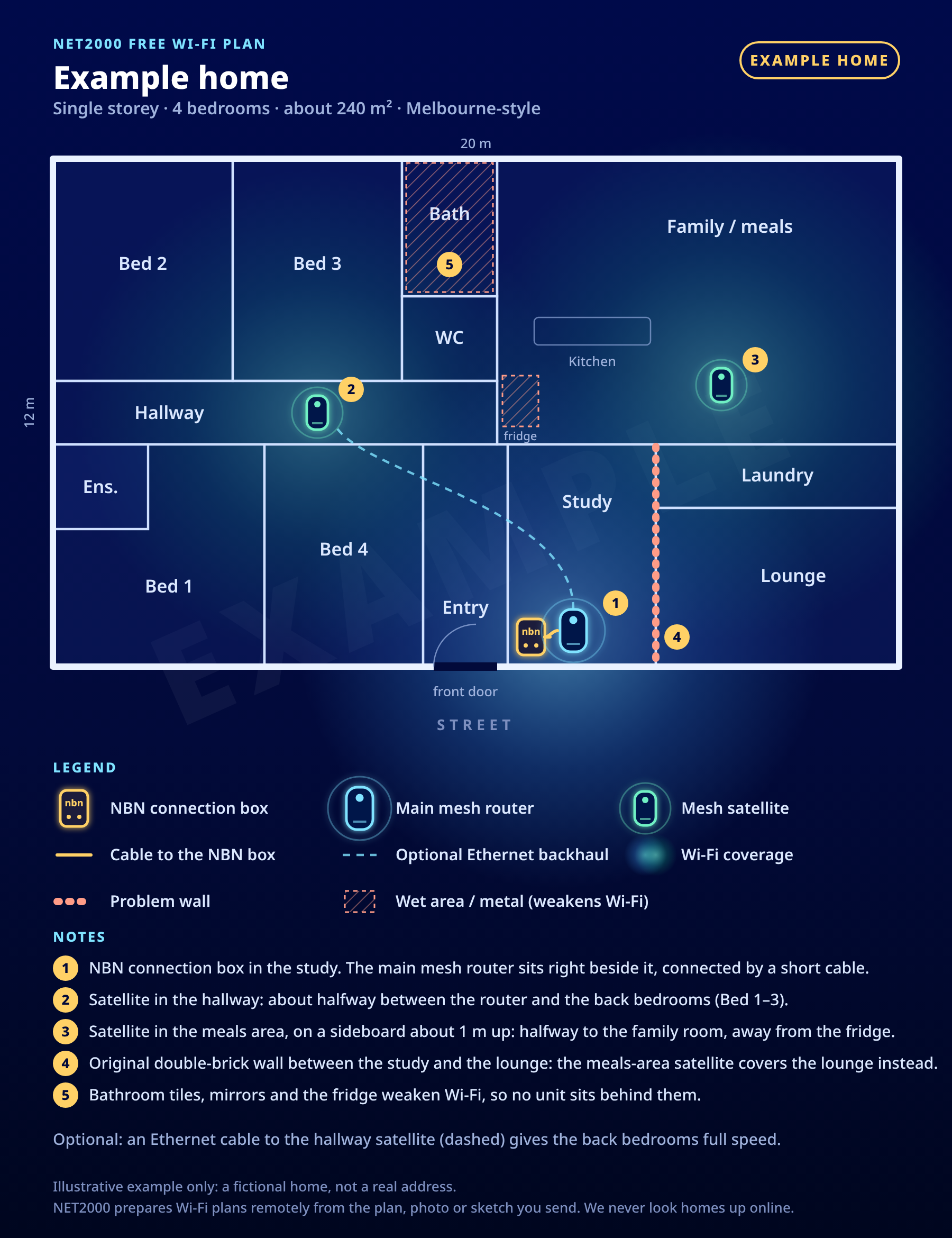
How we usually set it up: one main mesh router connected to your NBN connection box, replacing your separate router where that suits your connection, with mesh satellites placed around the house. We avoid simply adding a mesh system behind an existing router: that creates “double NAT” (two routers each running their own network), which can cause problems with online gaming, video calls and some remote-access apps. On some NBN connection types the main unit needs a built-in modem, so we’ll check what suits your connection first.
Wired backhaul is the secret weapon: if you can connect the mesh units to each other with Ethernet cable (or existing data points in the walls), each unit gets the full speed instead of sharing it over the air.
Apartment or up to about 3 bedrooms, one level
A good Wi-Fi 6 or newer router in a central spot is often enough. If one or two rooms are still slow, a two-pack mesh system (a main mesh router plus one satellite) in place of the old router usually fixes it.
Two storeys, double brick, or a long floor plan
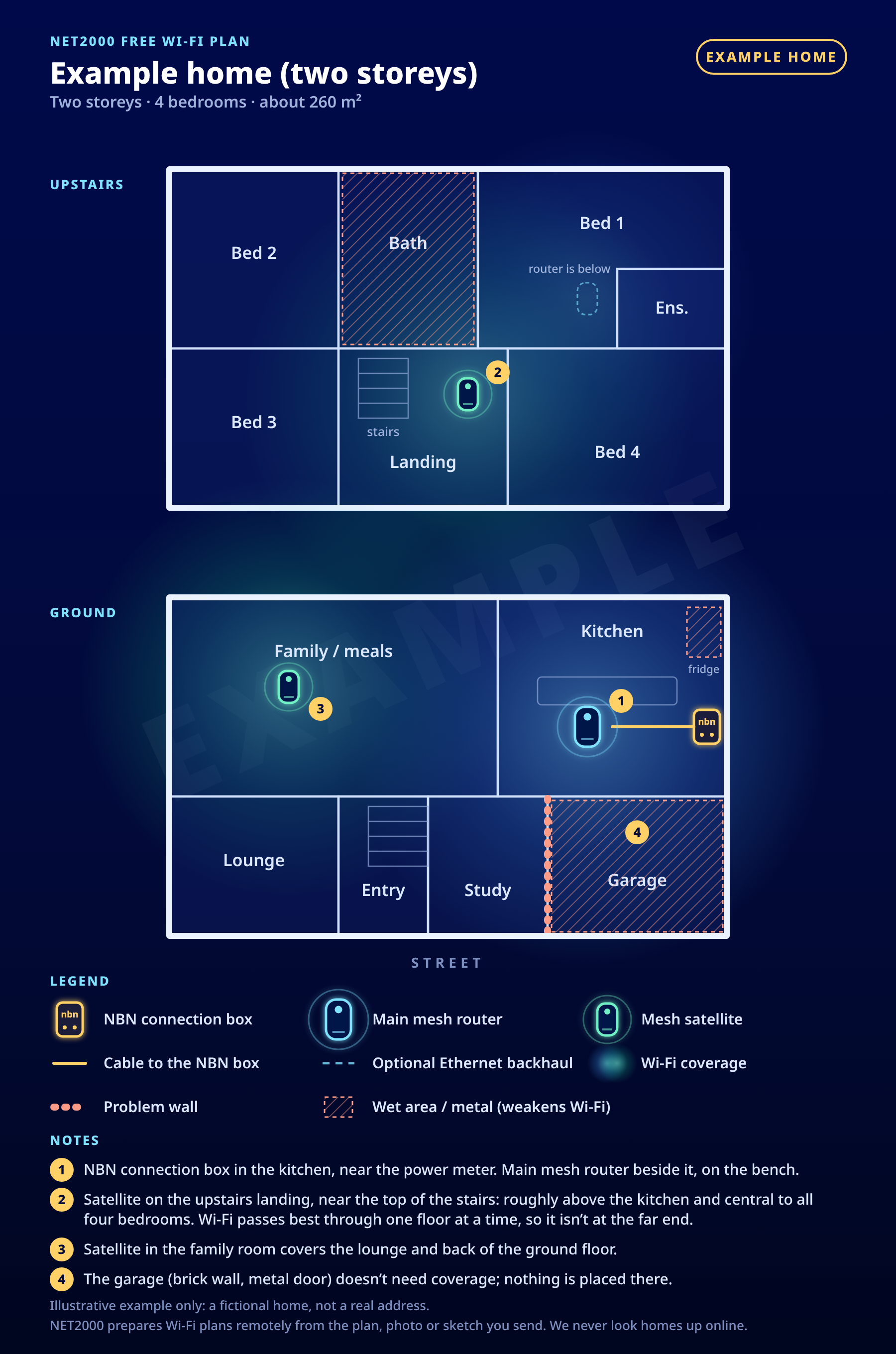
A main mesh router plus 1–2 satellites, ideally one unit per floor. Use wired backhaul where you can; otherwise a tri-band system keeps a dedicated link between units.
Larger floor areas and many users
Business-grade access points (often ceiling-mounted and powered over the network cable) with central management, plus separate staff and guest networks. Examples: TP-Link Omada, Ubiquiti UniFi, Netgear Orbi Pro. For business routing, NET2000 predominantly uses MikroTik routers.
Popular home mesh systems in Australia include TP-Link Deco, Netgear Orbi, Google Nest Wifi Pro, ASUS ZenWiFi (and ASUS AiMesh, which links compatible ASUS routers), Amazon eero and Linksys Velop. We don’t sell or favour a particular brand: look for Wi-Fi 6 or newer, WPA3 security and automatic firmware updates, and buy enough units for your space.
Not sure what you need? Our support team can help you set up or check your Wi-Fi remotely. Call (03) 9738 0005 or send us a support request.
Free Wi-Fi plan Free
Not sure where your mesh router and satellites should go? Sketch your home below and see your Wi-Fi plan straight away: pick the layout closest to yours, drag the rooms into shape and put the gold nbn box where your NBN connection is. Free, nothing to install, no home visit.
- Pick a layout, then drag, resize or rename the rooms (they snap to a 0.5 m grid). Add or delete rooms as you need.
- Mark your NBN connection box and any brick or thick inside walls.
- Show my Wi-Fi plan: the main mesh router goes at the NBN box and satellites go where they help most. Download it, or send it to us to check.
Your plan stays in your browser unless you choose to send it to us. We never look your home up online.
Drag rooms to move them and drag the square handles to resize; with Autofit on, drop a room between others and they slide apart to fit it in, with the walls joined up. Use the S / M / L buttons for quick sizes, and Undo (Ctrl+Z) to step back. Keyboard: Tab to a room, arrow keys move it, Shift + arrows resize, Delete removes. On a phone, tap Full-screen edit to drag with your finger.
A guide only; our team can check it for you.
Suggested kit: Any brand of mesh system works.
Tips for your home
- NBN connection box
- Main mesh router
- Mesh satellite
- Expected coverage
- May be weak
- Brick / thick wall
See an example plan from our team
Spam & scam emails, texts and websites
Scammers pretend to be people and organisations you trust. A few quick checks will stop nearly all of them.
Warning signs
- Urgency or fear: “your account will be closed today”, “a fine is overdue”, “a parcel can’t be delivered”.
- Too good to be true: prizes, refunds you weren’t expecting, or investment “opportunities”.
- Fake invoices and purchases: a bill or “order confirmation” for something you didn’t buy, asking you to call a number or click to cancel. Scamwatch has warned about these fake purchase call-back scams.
- A familiar name pretending to be someone else: a bank, the ATO, myGov, Australia Post, a toll road, your telco, or even a friend with a “new number”.
Check before you click
- Look at the sender’s real email address, not just the display name. Small misspellings or odd domains are a giveaway.
- Hover over (or long-press) a link to see where it really goes. “netbank-login.co” is not your bank.
- Better still, don’t use the link at all: type the official address yourself or use the official app, and find phone numbers on the organisation’s own website or your statement.
- Never share passwords, PINs or one-time codes (the 6-digit codes sent by text or an app). No genuine bank, government agency or NET2000 staff member will ask for them.
- Don’t let anyone you don’t know remotely access your computer because of an unexpected call or pop-up.
Text messages
Since 1 July 2026, businesses that send texts showing their name at the top (a “branded sender ID”) must register that name with the ACMA’s SMS Sender ID Register. A message marked “Unverified” deserves extra care, and even a familiar name can still be faked, so the same checks apply.
Fake websites and online shops
Be wary of shops with prices far below everyone else, no real contact details, or that only accept bank transfer, gift cards or crypto. The padlock in the address bar means the connection is encrypted, not that the business is genuine.
If something has gone wrong
- Contact your bank straight away if you’ve paid money or shared card details.
- Change the password for any account you may have given away, and turn on multi-factor authentication.
- Report it to Scamwatch, and report cybercrime to ReportCyber or call the Australian Cyber Security Hotline on 1300 CYBER1 (1300 292 371).
- IDCARE offers free support if your identity details have been stolen.
The Scamwatch message in three words: Stop. Check. Protect. Take a moment, check with someone you trust, and act quickly if something feels wrong.
Antivirus & device security
Good protection is built into modern computers and phones. Keep it on, keep it updated, and add a few good habits.
You probably already have good antivirus
- Windows 11 and Windows 10 include Windows Security (Microsoft Defender Antivirus). Keep it switched on and updating; most homes don’t need to buy another antivirus product. If you do install a paid one, it takes over from Defender, so don’t run two at once.
- Windows 10 reached end of support in October 2025. Consumers can enrol in Extended Security Updates, which Microsoft has extended to 12 October 2027. Plan your move to Windows 11 or a new PC before then.
- Mac computers have built-in malware protection (Gatekeeper, notarisation and XProtect). Install apps from the App Store or the developer’s own website, and keep macOS updated.
Good habits for every device
Turn on automatic updates
For Windows, macOS, phones, tablets, browsers and apps. Updates fix security holes that scammers look for.
Use multi-factor authentication
Turn on MFA (a code or app approval as well as your password) for email, banking, myGov and social media. Use passkeys where a site offers them.
Use a password manager
One strong passphrase unlocks a manager that creates and remembers a different password for every site. Never reuse your email password.
Back up
Keep copies of photos and documents in the cloud (iCloud, Google Drive or OneDrive) and/or on an external drive, and check now and then that you can restore them.
Phones and tablets need care too: install updates when prompted, only use the official app stores, and set a screen lock.
Keep your router & Wi-Fi up to date
Your router is the front door to your home network. Five minutes of care keeps it fast and secure.
- Update the firmware. Router makers fix security problems with updates. Turn on automatic updates in the router’s app or settings, or check every few months.
- Change the default admin password (the one used to log in to the router’s settings, which is different from your Wi-Fi password).
- Use WPA3 Wi-Fi security, or WPA2/WPA3 mixed mode if some older devices can’t connect. Avoid old WEP or WPA settings and open networks.
- Turn off what you don’t use: remote management and UPnP are best switched off unless you need them.
- Set up a guest network for visitors, and consider putting smart-home gadgets on it too, so they are kept apart from your computers.
- Replace an old router. If yours is around five years old or more, no longer gets updates, or only supports Wi-Fi 5 or older, a modern Wi-Fi 6 or Wi-Fi 7 router (or mesh system) is likely to be faster and safer.
Using a router from NET2000, or not sure how to log in to yours? We’re happy to walk you through it. For business connections, NET2000 predominantly uses MikroTik routers, set up and looked after by our team.
Stay in touch with family and pets
A small indoor camera with a built-in speaker and microphone lets you see, hear and chat with an older parent, or check on the dog, from your phone wherever you are. It’s about keeping in touch and peace of mind, set up together and with their agreement.
How it works
The camera sits on a shelf and joins your home Wi-Fi. Its picture and sound travel over your NBN connection to the camera maker’s app, then on to your phone, wherever you are. Press the Talk button in the app and your voice comes out of the camera’s speaker; the camera’s microphone brings their reply back to you.
Setting one up (about 15 minutes)
- Talk it over first. Agree together where the camera goes and when it will be on. It’s their home.
- Install the camera’s app on your phone (for example Tapo, eufy, Google Home, Ring or Furbo) and create an account with a strong, unique password. Turn on two-step verification (2FA) if it’s offered.
- Plug the camera in where it will live, usually the main living area, somewhere with good Wi-Fi.
- Add the camera in the app. It walks you through it, usually by scanning a QR code and choosing your Wi-Fi name and password. Many cameras only use 2.4 GHz Wi-Fi, which is fine: it reaches further through walls.
- Pop in a microSD card if the camera takes one, to keep recordings at home without a monthly fee.
- Share access, not passwords. Use the app’s sharing option so other family members get their own login.
- Say yes to updates when the app offers new firmware for the camera.
Using the Talk button
- Open the app and tap the camera to see the live picture.
- Tap the microphone or Talk button to speak (on some cameras you press and hold it). Some cameras work like a phone call, so you can both talk at once; others work like a walkie-talkie, so pause and let them answer.
- Start with a friendly “Hi Mum, it’s me” so nobody gets a fright, then speak normally and a little slower than usual.
- Turn your phone’s volume up to hear the reply, or use earphones somewhere noisy.
- For pets, a calm, familiar word or two works best. Some pets are puzzled by a voice with no person, so keep it short at first.
Cameras with a built-in speaker and microphone
Models we’ve checked on each maker’s Australian website (November 2026). We don’t sell these and prices change often, so check with the retailer, or ask us if you’d like help choosing.
TP-Link Tapo C210
2K camera you can turn and tilt from the app, with a built-in speaker and microphone for two-way talk and a Privacy Mode. Records at home to a microSD card (up to 512 GB).
tp-link.com/au →TP-Link Tapo C220
2K QHD pan & tilt camera with smart detection and two-way audio. Also records at home to a microSD card (up to 512 GB).
tp-link.com/au →eufy Indoor Cam E30
4K pan & tilt camera with two-way audio that can follow people and pets around the room. Keeps recordings at home on a microSD card (sold separately) or a eufy HomeBase 3, with no monthly fee.
eufy.com/au →Google Nest Cam Indoor (wired, 3rd gen)
2K camera with full two-way Talk & Listen and noise cancelling, so you can both speak at once. Works in the Google Home app; some features need a paid Google Home Premium plan.
store.google.com/au →Ring Indoor Camera (2nd Gen)
1080p camera with two-way talk and noise cancellation, plus a built-in privacy cover that switches off the camera and microphone. Uses 2.4 GHz Wi-Fi. Saving and replaying video needs a Ring subscription.
ring.com/au →Furbo 360° Dog Camera
Rotating 360° view, two-way audio, and you can toss your dog a treat from the app. Live view, talking, treat tossing and bark alerts work without a subscription; the optional Furbo Nanny plan adds video history. Uses 2.4 GHz Wi-Fi.
furbo.com/au →Using a camera respectfully and safely
- Ask first. The person being watched should agree to the camera, where it goes and when it’s on. Let visitors and carers know it’s there too.
- Keep cameras out of bedrooms and bathrooms. Living areas are the place. Turn on Privacy Mode or close the lens cover when it isn’t needed.
- Lock down the account: a strong, unique password and two-step verification (2FA). See our device security tips.
- Keep it updated. Let the app install camera firmware updates, just like your router.
- Choose a reputable brand with an Australian website and regular updates, rather than a no-name camera from an online marketplace.
- Give it good Wi-Fi. Use the 2.4 GHz network or make sure the camera sits within good mesh Wi-Fi coverage. If the picture keeps freezing, it’s usually the Wi-Fi.
A camera is a lovely way to say hello between visits and phone calls, not a replacement for them. Want a hand choosing or setting one up on your NET2000 connection? Just ask.
Restart
Turn the router off for 30 seconds and back on, and restart the device that’s playing up. It clears a surprising number of problems.
Use a cable where it counts
A network (Ethernet) cable gives the steadiest connection for work calls, online gaming, smart TVs and desktop PCs.
Test your speed
Run our speed test (it opens on our home page) or Speedtest by Ookla. Test on a cable first, then on Wi-Fi near the router and in the problem room, to see where the slowdown is.
Mind the busy times
Big downloads, game updates and cloud backups can slow everyone else down. Schedule them overnight if you can.
Keep devices tidy
Old phones and tablets that no longer get updates are slower and less safe on your network. Retire or disconnect them.
Still slow or dropping out?
Call our support team on (03) 9738 0005 (Mon–Fri, 9am–4pm) and we’ll check your line and help you find the cause.
We’re here to help
Whether it’s patchy Wi-Fi, a suspicious email or a router that needs a refresh, our friendly local team is happy to help. Call us during office hours or send a support request and we’ll get back to you.
Sources
Checked November 2026. Brand names are examples only; NET2000 is not affiliated with them.
- Scamwatch (National Anti-Scam Centre): report a scam; Stop. Check. Protect.; fake purchase call-back scams alert: https://portal.scamwatch.gov.au/report-a-scam/
- Australian Signals Directorate’s Australian Cyber Security Centre: ReportCyber: https://www.cyber.gov.au/report-and-recover/report
- cyber.gov.au: Learn how to spot scams: https://www.cyber.gov.au/publication/personal-cyber-security-handbook/learn-how-to-spot-scams
- cyber.gov.au: Secure your online activity (router, Wi-Fi encryption, guest Wi-Fi, remote management and UPnP): https://www.cyber.gov.au/publication/personal-cyber-security-handbook/secure-your-online-activity
- cyber.gov.au: Secure your devices (antivirus, backups): https://www.cyber.gov.au/publication/personal-cyber-security-handbook/secure-your-devices
- cyber.gov.au: Keep your devices and software up to date: https://www.cyber.gov.au/publication/personal-cyber-security-handbook/keep-your-devices-and-software-up-to-date
- cyber.gov.au: Set up multi-factor authentication: https://www.cyber.gov.au/publication/personal-cyber-security-handbook/set-up-multi-factor-authentication
- cyber.gov.au: Use passkeys: https://www.cyber.gov.au/publication/personal-cyber-security-handbook/use-passkeys
- ACMA: SMS Sender ID Register (from 1 July 2026): https://www.acma.gov.au/sms-sender-id-register
- ACMA: LIPD Class Licence 2025 (Wi-Fi in 5925–6585 MHz): https://www.acma.gov.au/consultations/2025-03/remaking-low-interference-potential-devices-class-licence
- Wi-Fi Alliance: Wi-Fi CERTIFIED 7: https://www.wi-fi.org/discover-wi-fi/wi-fi-certified-7
- Microsoft: Windows 10 Extended Security Updates: https://www.microsoft.com/en-au/windows/extended-security-updates
- Apple Platform Security: Protecting against malware in macOS: https://support.apple.com/guide/security/protecting-against-malware-sec469d47bd8/web
- IDCARE: identity and cyber support: https://www.idcare.org/